

Blog
Best File Formats for CO₂ Laser Cutting and Engraving
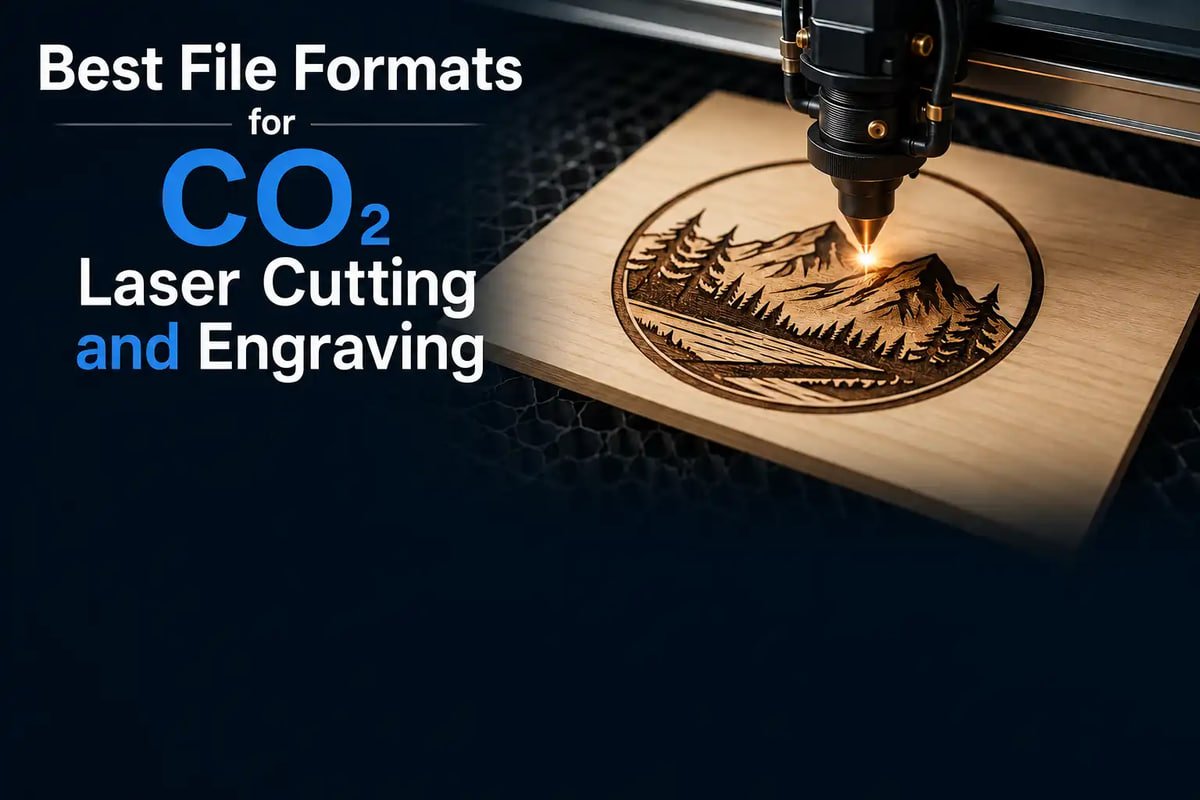
Table of Contents
Choosing the best file formats for CO₂ laser cutting has a direct effect on cutting accuracy, engraving quality, and how smoothly a job moves from design to finished part. The wrong format, or a poorly prepared one, leads to missing vectors, scaling errors, failed cuts, and wasted material. This guide explains when to use DXF, SVG, AI, PDF, and raster files, how they compare, and the common preparation mistakes that cause production problems, so operators and designers can build a reliable, efficient laser workflow. As a manufacturer of industrial laser systems, Hightech Industry Group sees these file issues as one of the most avoidable causes of downtime on the shop floor.
Quick Answer: Which File Format Is Best for CO₂ Laser Cutting?
For cutting, vector formats are essential because they define precise paths the laser follows. DXF is the go-to for accuracy and CAD compatibility, SVG offers flexibility across modern design tools, and AI suits designers working in Adobe Illustrator. For engraving, the choice depends on the artwork: vector files give crisp lines and text, while raster formats are better for photographs and shaded images. The comparison table below summarizes how the main laser cutting file formats differ at a glance.
Format | Type | Best For | Strengths | Watch Out For |
DXF | Vector (CAD) | Precision cutting | Accurate dimensions, wide CAD/controller support | No native raster; version differences |
SVG | Vector (web/design) | Flexible design workflows | Open format, easy to edit, broad software support | Scaling/unit quirks between apps |
AI | Vector (Adobe) | Illustrator design work | Rich design control, layers, color mapping | Often needs export/conversion for controllers |
Vector or raster | Sharing and proofing | Universal, preserves layout | May embed raster; verify true vectors | |
Raster (JPG/PNG/BMP) | Raster | Photo/grayscale engraving | Good for tonal images and photo engraving | Cannot be used for vector cutting |
Why File Format Selection Matters in CO₂ Laser Cutting and Engraving
In a production environment, the file is the instruction set the machine obeys. A clean, correctly prepared vector file lets the laser cut precise paths at the right size on the first attempt. A flawed file, with open paths, wrong units, or embedded images where vectors are needed, causes the machine to skip lines, cut the wrong size, or refuse the job altogether. Each failure means wasted material, lost time, and interrupted production flow.
This is why professional shops treat file preparation as part of the manufacturing process, not an afterthought. The format you choose affects software compatibility, how easily a job can be nested to save material, and how reliably the laser controller interprets your design. Understanding these differences is fundamental to efficient CO2 Laser Cutting and Engraving work, where accuracy and repeatability directly determine profitability.
Best File Formats for CO₂ Laser Cutting and Engraving
Each vector format has distinct strengths. Knowing when to reach for DXF, SVG, or AI helps you match the file to the job and the software in your workflow.
DXF Files: Best for Precision Cutting
DXF (Drawing Exchange Format) originated in CAD and is built around precise, dimensionally accurate geometry, which makes it ideal for cutting jobs where exact sizing matters. Because it is a long-established interchange format, DXF is widely supported by CAD programs and laser control software alike, making it a dependable choice for fabrication and industrial parts. The main caution is that DXF does not natively carry raster images, so it is a cutting format rather than a photo-engraving one, and differences between DXF versions can occasionally affect how curves or units import.
SVG Files: Best for Flexible Design Workflows
SVG (Scalable Vector Graphics) is an open vector format that has become a favorite in modern design and maker workflows. It scales cleanly to any size without quality loss, is easy to edit in a wide range of free and paid software, and moves smoothly between design tools and many laser programs. In the common DXF vs SVG for laser cutting decision, SVG tends to win for design-led work and flexibility, while DXF wins for strict dimensional precision. The one thing to watch is that different applications can interpret SVG units and scaling differently, so confirming dimensions after import is wise.
AI Files: Best for Adobe Illustrator Users
The AI file format is native to Adobe Illustrator and gives designers rich control over paths, layers, and color mapping, which many shops use to separate cut lines from engrave areas. If your design team works in Illustrator, keeping artwork in AI preserves that control through the design stage. However, many laser controllers do not read AI directly, so files are usually exported to DXF, SVG, or PDF for the machine. Treating AI as a design-stage format that you export from for production avoids compatibility surprises.
DXF vs SVG vs AI: Which Format Should You Choose?
The right choice depends on your software and the nature of the job. For dimensionally critical cutting, especially parts originating in CAD, DXF is the safest pick. For flexible, design-driven work and easy editing across tools, SVG is excellent. For shops centered on Adobe Illustrator, AI is the natural design format, exported to DXF or SVG for the machine. Many production teams standardize on one vector format for machine files to keep their workflow predictable, then convert into it from whatever design tool created the artwork.
Software pairing matters too. An entry-level or mid-range system such as the HT CO2-6040 Laser Cutting Machine handles common materials like acrylic, wood, MDF, leather, and signage stock, and works smoothly when files arrive as clean vectors in a format its controller reads natively. Matching your export format to what the machine expects removes a frequent source of failed jobs.
Common File Preparation Mistakes That Cause Laser Cutting Problems
Most laser job failures are not machine faults, they are file faults. These preparation mistakes are the usual culprits, and all of them are preventable with a quick pre-flight check.
Missing Vector Paths
If a design contains raster images or unclosed paths where the laser expects continuous vectors, the machine may skip those sections entirely or fail to cut through. Before sending a file, confirm that everything meant to be cut is a closed vector path, not a sketch, image, or stray line. Open paths are a leading cause of incomplete cuts.
Scaling and Dimension Errors
Scaling problems are among the most common and costly errors. A design created in the wrong units, or one that shifts size on import, can produce parts at the wrong dimensions and ruin material. Always set and verify real-world dimensions in the file, and check the size again after importing into the laser software to catch unit mismatches before cutting.
Duplicate Lines and Overlapping Objects
Duplicate or overlapping vectors cause the laser to cut the same line twice, which wastes time, can scorch or over-burn edges, and on some materials increases fire risk. Cleaning up artwork to remove stacked lines and merge overlapping shapes produces cleaner cuts and faster run times.
Unsupported Fonts and Text Conversion Issues
Live text depends on the font being available, and laser software often cannot interpret editable text reliably. The fix is simple and essential: convert all text to outlines or curves before exporting. This turns letters into vector paths that cut exactly as designed, regardless of what fonts the machine’s computer has installed.
Software Compatibility: Matching File Formats to Laser Workflow
A smooth laser workflow is really a chain from design software to laser controller, and the file format is the link between them. Design tools such as Illustrator, Inkscape, CorelDRAW, and CAD packages each export vectors, but the laser’s control software determines which formats it can read directly. The goal is to design in whatever tool suits your team, then export to the vector format your controller handles best, typically DXF or SVG.
Understanding the vector-versus-raster distinction is central to this. Vector files describe geometry as mathematical paths, ideal for cutting and crisp line engraving, while raster files describe images as a grid of pixels, suited to photo and grayscale engraving. Many real jobs combine both: vector paths for cutting and outlines, and a raster image for a photographic engrave. Knowing which the job needs, and exporting accordingly, prevents the mismatch of trying to cut a pixel image or photo-engrave from a bare vector.
Building a consistent, well-understood workflow is what separates shops that run reliably from those plagued by reruns. Drawing on its experience as a laser equipment manufacturer, HT Industry encourages operators to standardize file preparation steps so every job reaches the machine in a predictable, production-ready state.
Find the Right Machine for Your Application
Frequently Asked Questions
What is the best file format for CO₂ laser cutting?
For cutting, vector formats are best. DXF is ideal for precise, dimensionally accurate cutting, while SVG offers flexibility for design-driven workflows. The right pick depends on your software and how exact your sizing needs to be.
Is DXF better than SVG for laser cutting?
Neither is universally better. DXF excels at dimensional precision and CAD compatibility, making it strong for fabrication parts. SVG is more flexible and easier to edit across modern design tools. Choose DXF for strict accuracy and SVG for design flexibility.
Can CO₂ laser machines use AI files directly?
Often not. AI is native to Adobe Illustrator and many laser controllers cannot read it directly. Designers usually keep artwork in AI through the design stage, then export to DXF, SVG, or PDF for the machine.
What file format provides the highest cutting accuracy?
DXF generally provides the highest cutting accuracy because it originated in CAD and is built around precise, real-world dimensions, with broad support in laser control software.
Can PDF files be used for laser cutting and engraving?
Yes, but with care. A PDF can contain true vectors suitable for cutting, or just an embedded raster image that cannot be cut. Always confirm the PDF holds genuine vector paths before relying on it for a cutting job.
What is the difference between vector and raster files in laser engraving?
Vector files describe shapes as mathematical paths, perfect for cutting and crisp line engraving. Raster files describe images as pixels, which suits photographic and grayscale engraving. Many jobs use vectors for cutting and a raster image for photo engraving.
Latest contents